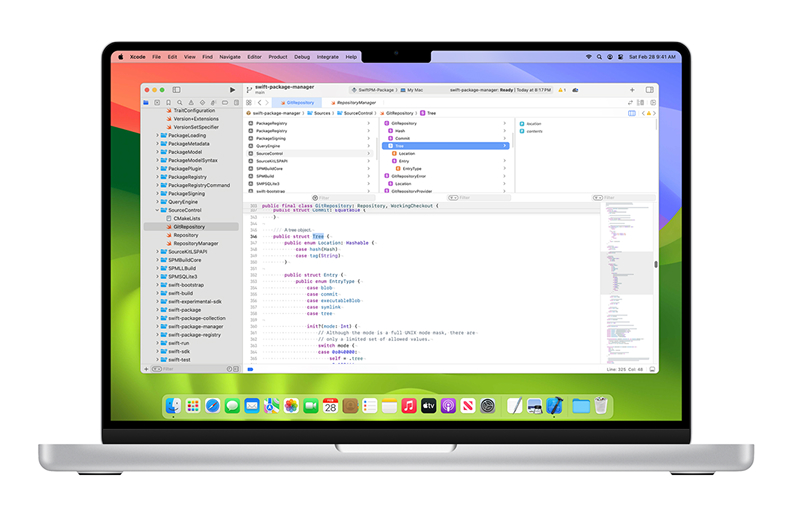
Developer Tools · Information Architecture · macOS
A column-based interface for navigating large Xcode codebases by meaning, not by file location. Spatial structure for how developers actually think.
Prototype walkthrough — column navigation, symbol filtering, contextual previews
The Gap
“The challenge wasn’t understanding the logic — it was locating it.”
Xcode organizes code by file. But developers think in symbols —
functions, classes, protocols. When you join a new codebase,
the file tree tells you where things live, not what they do or how they connect.
The Xcode Symbol Browser reorganizes that surface.
Instead of a file hierarchy, you get a column-based view — inspired by Finder's Miller columns —
where symbols are grouped by type and browseable spatially.
You navigate by meaning. The architecture reveals itself as you explore.
Massive codebases
Repositories with thousands of files and symbols give no navigable overview of what exists.
Unfamiliar territory
Onboarding to a new project requires building a mental model with no spatial aid.
Flat tooling
File trees and Quick Open offer access, not understanding. Linear tools for non-linear thinking.
Three Decisions
The interface is built on three structural choices, each one a deliberate departure from how Xcode currently works.
01
Miller columns, not a file tree
“Spatial structure for spatial thinking.”
Column-based navigation lets you move through symbol relationships without losing context. Each column is a level of specificity. You see where you came from while exploring where you’re going.
Rejected: List views and expandable trees collapse into single-column experiences that hide structure as you go deeper.
02
Organize by symbol type, not file
“Code relationships over folder hierarchy.”
Classes, protocols, functions, and enums are surfaced as first-class categories. Smart filters let you narrow by type and scope instantly, matching how developers search mentally.
Rejected: File-based grouping reflects how code is stored, not how developers think when debugging or onboarding.
03
Hover previews, not file switches
“Context without interruption.”
Symbol definitions preview on hover. You can verify what something is before committing to opening it. Reduces the cycle of opening, reading, and closing files during exploration.
Rejected: Opening a file to check a definition breaks flow entirely — you lose your place in the hierarchy.
“It’s like Finder, but for code. It shows you structure, not just files.”
User testing feedback — software engineer, Xcode user